• Skip to primary navigation
  • Skip to main content
  • Skip to primary sidebar
webnzee

Webnzee

Webnzee — Your Web Dev Companion.

  • Home
  • Blog
  • Terms
    • Privacy
    • Disclaimer
  • Support
  • Subscribe
  • Contact
  • Show Search
Hide Search

Archives for March 2026

Nginx vs Apache Explained (2026): What a Web Server Really Is & How WordPress Actually Uses It

Splendid · March 22, 2026 · Leave a Comment

If you’ve worked with WordPress on AWS Lightsail or Bitnami, you’ve probably seen both Nginx and Apache — sometimes even on the same server.

This leads to confusion:

  • Are they competitors?
  • Which one does WordPress actually use?
  • Why did you see a “Welcome to nginx” page?

This guide clears everything up — starting from comparison, then fundamentals, then real-world architecture.


⚔️ Nginx vs Apache: Practical Comparison First

FeatureNginxApache
ArchitectureEvent-drivenProcess/thread-based
PerformanceVery highModerate
Memory usageLowHigher
Static filesExtremely fastSlower
Ease of configurationMore technicalBeginner-friendly
.htaccessNot supportedSupported
Best use caseCloud, high trafficTraditional hosting

Quick takeaway:

  • Nginx = performance, scalability
  • Apache = flexibility, simplicity

🌐 What is a Web Server (Actual Meaning)?

A web server has two meanings:

🖥️ 1. Hardware

  • A physical or cloud computer
  • Example: AWS Lightsail instance

⚙️ 2. Software

Programs like:

  • Nginx
  • Apache

👉 Core job: Receive a browser request → return a website


🧱 What Components Are Needed to Run WordPress?

To run a real website, you need a stack:

LayerExample
Web serverNginx / Apache
ApplicationWordPress
Language runtimePHP
DatabaseMySQL
OSLinux

Common stacks:

  • LAMP → Linux + Apache
  • LEMP → Linux + Nginx

🔄 How WordPress Actually Works (Request Flow)

  1. User opens your website
  2. Web server receives request
  3. Request goes to PHP
  4. WordPress fetches data from MySQL
  5. HTML is generated
  6. Response sent back to browser

👉 Without a web server: WordPress cannot be accessed


🤯 The Real Truth: Bitnami Uses Apache AND Sometimes Nginx

This is where most confusion happens.

✅ Core fact:

WordPress (in Bitnami) runs on Apache + PHP

⚠️ But:

Some Bitnami setups ALSO include Nginx as a reverse proxy


🧩 Three Possible Real-World Setups

🥇 1. Apache Only (LAMP)

  • Apache handles everything
  • Simple setup
  • Common in older or basic deployments

🥈 2. Nginx + Apache (Most Practical Modern Setup)

Flow: User → Nginx → Apache → WordPress → Response

  • Nginx handles:
    • Static files
    • Traffic management
  • Apache handles:
    • PHP execution
    • WordPress logic

🥉 3. Nginx Only (Advanced Setup)

  • Apache removed
  • Nginx + PHP-FPM
  • High performance
  • Requires more expertise

⚠️ Why You Saw “Welcome to Nginx”

This happens when:

  • Nginx is installed and running
  • But NOT correctly connected to Apache

👉 Result: Nginx intercepts traffic and shows default page

Fix:

  • Either configure reverse proxy properly
  • Or stop Nginx

☁️ Bitnami vs Amazon Lightsail Blueprint (Corrected View)

Bitnami WordPress

  • Core: Apache + PHP
  • Optional: Nginx (reverse proxy)
  • Optimized for performance
  • Custom folder structure

Amazon Lightsail Blueprint

  • Pure Apache (LAMP stack)
  • Easier to manage
  • Standard Linux paths
  • Slightly heavier

🎯 Why Nginx Is Still Popular

Even when Apache is present, Nginx is often added because:

  • Handles high traffic better
  • Uses less memory
  • Faster static file delivery
  • Works well as reverse proxy

🧠 WordPress vs Web Server (Final Clarity)

  • WordPress = creates content
  • Web server = delivers content

Analogy:

  • WordPress = Chef
  • Web server = Waiter

⚖️ When Should You Use What?

Use Nginx (or Nginx + Apache) if:

  • You want performance
  • You are using cloud hosting
  • You expect growth

Use Apache only if:

  • You want simplicity
  • You rely on .htaccess
  • You prefer traditional setups

🔥 Final Takeaways

  • A web server is both hardware and software
  • Nginx and Apache are not always competitors — they can work together
  • Nginx may sit in front as a performance layer
  • Your server behavior depends on configuration, not just software

How Adding Swap Memory Fixed a Frequently Crashing AWS Lightsail WordPress Server

Rajeev Bagra · March 8, 2026 · Leave a Comment

Why my AWS Lightsail instance for WordPress site using Amazon stack keeps getting stopped
byu/DigitalSplendid inaws

Small cloud servers are extremely popular among developers, bloggers, and startup founders because they provide an affordable way to launch websites quickly. Platforms like AWS Lightsail make it easy to deploy applications such as WordPress in just a few clicks.

However, many users running WordPress on smaller Lightsail instances—especially those with 1 GB RAM or less—sometimes encounter a frustrating issue: the website suddenly stops responding and only starts working again after the server is rebooted.

This article explains why this happens and how a simple configuration change—adding swap memory—can significantly improve server stability.


The Initial Problem: Website Goes Down Until Reboot

In some Lightsail environments, users may notice the following pattern:

  • The website works normally after the server starts.
  • After some hours or a day, the site stops responding.
  • SSH access may still work, but the website itself becomes inaccessible.
  • Rebooting the server immediately restores the site.

This cycle can repeat frequently and is especially common on smaller instances running WordPress, MySQL, and Apache together.

While the issue might initially seem like a problem with WordPress plugins, the real cause is often much simpler: memory exhaustion.


Understanding the Role of Server Memory

A typical WordPress server running on Linux uses memory for several components:

  • Web server (Apache or Nginx)
  • Database server (MySQL or MariaDB)
  • PHP processes that generate dynamic pages
  • Operating system cache
  • WordPress plugins and themes

On a 1 GB Lightsail instance, the available RAM is usually around 945 MB. As traffic increases or background processes run, memory consumption can approach this limit.

If the server runs out of memory and no backup memory mechanism exists, Linux may terminate important services to recover resources. When this happens, components like MySQL or Apache stop working, causing the website to go offline.


What Is Swap Memory?

Swap memory is a portion of disk storage used as virtual memory when physical RAM becomes insufficient.

When the system approaches its RAM limit, Linux can temporarily move less-used memory pages to swap space. This prevents essential processes from crashing and allows the server to continue operating normally.

While swap is slower than RAM because it resides on disk, it acts as an important safety net.


Checking Server Memory Usage

Administrators can check memory usage using the following command:

free -h

Example output on a small Lightsail instance might look like this:

Mem: 945Mi total, 625Mi used, 208Mi free
Swap: 0B total

The key issue here is the absence of swap space. Without swap, the system has no fallback when RAM becomes full.


Creating Swap Memory on a Lightsail Server

Creating swap space on Linux is straightforward. The following commands create a 1 GB swap file.

Step 1: Create the swap file

sudo fallocate -l 1G /swapfile

Step 2: Secure the file

sudo chmod 600 /swapfile

Step 3: Prepare it as swap

sudo mkswap /swapfile

Step 4: Enable swap

sudo swapon /swapfile

Step 5: Make the configuration persistent

echo '/swapfile none swap sw 0 0' | sudo tee -a /etc/fstab

After completing these steps, running free -h again should display:

Swap: 1.0Gi total

This confirms that swap memory is active.


Why Swap Improves Stability

Once swap is enabled, the operating system can handle temporary memory pressure more gracefully.

Instead of terminating services like MySQL or Apache when RAM fills up, Linux can move inactive memory pages to swap space. This helps ensure that essential services remain running, preventing website downtime.

For small cloud servers, this simple adjustment often eliminates the need for frequent reboots.


Optional Optimization: Adjust Swap Behavior

Administrators may also want to reduce how aggressively Linux uses swap by adjusting the swappiness parameter.

sudo sysctl vm.swappiness=10

To make this setting permanent:

echo "vm.swappiness=10" | sudo tee -a /etc/sysctl.conf

Lower swappiness values encourage the system to prefer RAM while using swap only when necessary.


Learning From the Community While Troubleshooting

When troubleshooting infrastructure issues like this, developers rarely work in isolation. Many real-world solutions emerge from discussions within the broader technology community.

Useful places to seek guidance include:

  • AWS community forums
  • Developer discussions on Reddit
  • Open-source community blogs
  • Technical Q&A platforms

Often, someone else has already faced a similar issue and shared valuable insights or troubleshooting steps. Reading these discussions can save significant time and help identify practical solutions faster.


Using AI Tools for Faster Troubleshooting

Modern AI tools can also play a useful role in diagnosing server issues.

Tools like ChatGPT can help by:

  • Interpreting command outputs
  • Suggesting troubleshooting steps
  • Explaining Linux system behavior
  • Generating command sequences to test configurations

For developers who may not be deeply experienced in server administration, AI tools can act as a helpful companion during debugging sessions.

Of course, AI suggestions should still be reviewed carefully and tested in controlled environments, but they can significantly accelerate the learning and troubleshooting process.


Best Practices for Small Cloud Servers

Developers running WordPress or similar applications on lightweight cloud instances can improve reliability by following a few best practices:

  • Enable swap memory on instances with limited RAM.
  • Monitor system resources using tools like htop.
  • Limit excessive server processes such as Apache workers.
  • Regularly review plugin usage to avoid unnecessary memory consumption.
  • Learn from online developer communities when diagnosing issues.

These measures can significantly improve performance and uptime.


Final Thoughts

Affordable cloud servers make it easy to deploy websites quickly, but smaller instances come with limited resources. When RAM runs out, services may fail unless the system has a fallback mechanism.

Adding swap memory provides a simple yet effective safeguard against unexpected crashes. For many developers and site owners using AWS Lightsail, this small configuration change can mean the difference between a server that requires daily reboots and one that runs reliably for weeks or months.

Understanding and managing server memory—while also leveraging community knowledge and modern AI tools—can make cloud infrastructure far easier to maintain and troubleshoot.

Understanding Markdown and Its Relevance in WordPress

Rajeev Bagra · March 6, 2026 · Leave a Comment

When building websites, documentation systems, or content platforms, developers often encounter Markdown, a lightweight markup language designed to make writing formatted content simple and readable.

While platforms like Django applications, developer documentation sites, and static site generators rely heavily on Markdown, many people wonder whether Markdown has any relevance in WordPress, the world’s most widely used content management system.

This learning post explains what Markdown is, how it works, and how it fits into the WordPress ecosystem.


What Is Markdown?

Markdown is a lightweight markup language that allows writers to format text using simple symbols instead of complex HTML tags.

Instead of writing HTML like this:

<h1>Introduction</h1>
<p>This is <strong>important</strong> text.</p>

Markdown lets you write the same content in a much simpler form:

# Introduction

This is **important** text.

The Markdown text is then converted into HTML, which browsers can render.

This makes Markdown extremely popular for:

  • Technical documentation
  • Knowledge bases
  • Developer blogs
  • GitHub README files
  • Static websites

Why Markdown Was Created

Writing long documents directly in HTML can be tedious and difficult to maintain.

For example, consider formatting a simple list in HTML:

<ul>
<li>Python</li>
<li>Django</li>
<li>Flask</li>
</ul>

In Markdown, the same content becomes:

- Python
- Django
- Flask

This makes Markdown:

  • easier to read
  • easier to write
  • faster to edit
  • more portable across platforms

Because of these advantages, Markdown has become the standard writing format for developers.


Common Markdown Syntax

Here are some of the most commonly used Markdown elements.

Headings

# Heading 1
## Heading 2
### Heading 3

Bold and Italics

**Bold text**
*Italic text*

Lists

- Item one
- Item two
- Item three

Links

[OpenAI](https://openai.com)

Images

![Alt text](image.jpg)

When processed by a Markdown parser, these elements are automatically converted into HTML.


How Markdown Is Used in Web Applications

Many web applications store content as Markdown and convert it to HTML before displaying it in the browser.

For example, a simplified workflow looks like this:

Markdown file
      ↓
Markdown parser
      ↓
HTML output
      ↓
Browser rendering

Frameworks like Django commonly use Python libraries such as:

markdown2

to perform this conversion.

This approach allows developers to store content in a human-friendly format while still serving HTML pages to users.


How WordPress Handles Content

WordPress takes a different approach.

Instead of writing Markdown, most WordPress users write content using a visual editor, known as the Block Editor (Gutenberg).

When a user formats text inside the editor—such as adding headings, bold text, or lists—WordPress automatically converts that formatting into HTML behind the scenes.

For example, when you create a heading in WordPress, the system stores something like this in the database:

<h2>My Section Heading</h2>

So WordPress primarily works with HTML rather than Markdown.


Can Markdown Be Used in WordPress?

Even though WordPress does not use Markdown by default, it can still support Markdown through plugins.

Some plugins allow authors to write posts using Markdown syntax, which WordPress then converts into HTML when displaying the page.

Examples of such plugins include:

  • Jetpack Markdown
  • WP Markdown Editor
  • Parsedown Markdown integrations

With these tools, a WordPress post can be written like this:

# My Blog Post

This article explains **data science tools**.

## Tools

- Python
- Pandas
- Tableau

The plugin converts the Markdown into HTML before rendering the page.


Why WordPress Uses HTML Instead of Markdown

WordPress is designed primarily for non-technical users, such as bloggers, small business owners, and marketers.

These users usually prefer a visual editor, where formatting is applied through buttons rather than syntax.

Markdown requires remembering formatting symbols, which can be intimidating for beginners.

Therefore, WordPress focuses on:

  • drag-and-drop editing
  • visual formatting
  • block-based content design

This makes the platform easier for everyday users.


Where Developers Encounter Markdown Most Often

Even if someone primarily uses WordPress, Markdown remains an important skill because it appears in many developer environments.

Examples include:

  • GitHub documentation
  • README files
  • developer blogs
  • knowledge management tools
  • static site generators
  • collaborative documentation platforms

Platforms such as GitHub, Stack Overflow, and many technical blogging systems rely heavily on Markdown.


Markdown and the Future of Publishing

Modern publishing systems increasingly combine Markdown with automated workflows.

For example, many developers now write blog posts as Markdown files stored in Git repositories. These files are then automatically converted into web pages using static site generators.

This workflow allows content to be:

  • version controlled
  • easily portable
  • programmatically generated
  • automatically deployed

While WordPress still dominates traditional blogging, Markdown continues to power many developer-focused publishing platforms.


Key Takeaways

Markdown is a lightweight markup language that simplifies writing formatted content.

It allows writers to:

  • format text easily
  • maintain readability
  • convert content into HTML automatically

WordPress primarily uses HTML generated by its visual editor, but Markdown can still be used through plugins or developer workflows.

Understanding Markdown is particularly valuable for developers, as it plays a major role in modern documentation systems, programming communities, and automated publishing tools.


Learning Markdown provides a useful bridge between simple writing tools and structured web publishing, making it an important skill for anyone interested in web development or technical content creation.

Django vs WordPress: Project and App Equivalent

Rajeev Bagra · March 5, 2026 · Leave a Comment

Developers who learn both Django and WordPress often notice that the two platforms organize functionality differently.

  • Django uses Projects and Apps
  • WordPress uses Core, Themes, and Plugins

Although the terminology differs, the purpose is somewhat similar.


1. Django Project vs WordPress Installation

Image
Image
Image

The closest equivalent of a Django Project in WordPress is a WordPress installation (the entire website).

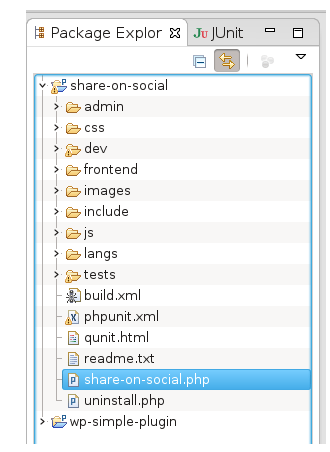
When you install WordPress, you get a full site structure like:

wordpress/
   wp-admin/
   wp-content/
   wp-includes/
   wp-config.php

This installation manages:

  • Database connection
  • Core system functionality
  • Site configuration
  • Installed plugins
  • Installed themes

So conceptually:

DjangoWordPress
ProjectWordPress installation

Both represent the entire website application.


2. Django Apps vs WordPress Plugins

Image
Image

The closest equivalent of a Django App in WordPress is a Plugin.

A plugin adds a specific functionality to a WordPress site.

Examples:

  • Contact form
  • SEO tools
  • Membership systems
  • E-commerce

For example:

  • WooCommerce → adds an entire e-commerce system
  • Yoast SEO → adds SEO optimization features

Similarly, in Django an app might handle:

  • Blog system
  • Authentication
  • Payments
  • Forums

So conceptually:

DjangoWordPress
AppPlugin

Both are modules that extend functionality.


3. Django Templates vs WordPress Themes

Image
Image
Image

In Django, the user interface is built using templates.

In WordPress, the equivalent concept is a Theme.

Themes control:

  • Layout
  • Visual design
  • Page templates
  • Styling

For example:

  • Astra
  • GeneratePress

Themes define how the website looks, while plugins define what the website does.


4. Complete Conceptual Mapping

Django ConceptWordPress EquivalentPurpose
ProjectWordPress installationEntire website
AppPluginFeature module
TemplatesThemeWebsite design
ModelsDatabase tablesData structure
ViewsPHP logicApplication behavior

5. Key Architectural Difference

The biggest difference is who the platform is designed for.

Django

  • Framework for developers
  • Requires coding
  • Highly customizable architecture

WordPress

  • CMS for content creators and businesses
  • Functionality added using plugins
  • Development optional

6. Example Comparison

Suppose you want to build an online learning platform.

In Django

Project:

learning_platform/

Apps:

users/
courses/
payments/
forum/

In WordPress

Website installation:

wordpress site

Plugins:

  • LMS plugin
  • Membership plugin
  • Payment plugin
  • Forum plugin

Example LMS plugin:

  • LearnDash

Final Takeaway

There is no perfect one-to-one mapping, but the closest conceptual comparison is:

DjangoWordPress
ProjectWordPress site installation
AppPlugin
TemplatesTheme

Understanding this comparison helps developers move easily between framework-based development (Django) and CMS-based development (WordPress).

Community Discussions (Reddit)

Django

  • Run task on backend
  • They want a data scientist + backend dev + ML engineer + DevOps person in one fresh graduate. 💀
  • Why I deploy my apps on Railway (and you might want to too)
  • Are Old Django courses still relevant today?
  • Built a Django app that turns documents into a knowledge graph and lets you query it

WordPress

  • Comment a keyword and get a free detailed blog template
  • Google Analytics not tracking all visitors
  • What’s your go-to WordPress stack for client builds in 2026?
  • Plugin update via ZIP shows “new version available” even after updating (need to install twice?)
  • Trying to upload a plugin and now getting this message

Primary Sidebar

Recent Posts

  • Nginx vs Apache Explained (2026): What a Web Server Really Is & How WordPress Actually Uses It
  • How Adding Swap Memory Fixed a Frequently Crashing AWS Lightsail WordPress Server
  • Understanding Markdown and Its Relevance in WordPress
  • Django vs WordPress: Project and App Equivalent
  • Is Twilio a Bad Company? A Balanced Review — And Should You Join the Twilio Champion Program?

Archives

  • March 2026
  • February 2026
  • January 2026
  • December 2025
  • October 2025
  • August 2025

Categories

  • Blog

Tag

AWS EC2 AWS Lightsail Azure Contabo CSS DBMS DigitalOcean Django forms Git Github HTML Markdown Python spreadsheets SQL Twilio webdev webhosting WordPress
Terms Display
Git spreadsheets CSS forms Web Server HTML Python Nginx Azure webdev Markdown SQL webhosting Contabo Github Django WordPress DigitalOcean DBMS Twilio

Start building your digital presence with Webnzee. Contact Us

Webnzee

This website may use AI tools to assist in content creation. All articles are reviewed, edited, and fact-checked by our team before publishing. We may receive compensation for featuring sponsored products and services or when you click on links on this website. This compensation may influence the placement, presentation, and ranking of products. However, we do not cover all companies or every available product.

  • Home
  • Blog
  • Terms
  • Support
  • Subscribe
  • Contact
Scroll Up