• Skip to primary navigation
  • Skip to main content
  • Skip to primary sidebar
webnzee

Webnzee

Webnzee — Your Web Dev Companion.

  • Home
  • Blog
  • Trending
  • Offers
  • Terms
    • Privacy
    • Disclaimer
  • Subscribe
  • Support
  • Contact
  • Show Search
Hide Search
You are here: Home / Archives for Rajeev Bagra

Rajeev Bagra

How to Launch a WordPress Website on AWS EC2 (Step-by-Step Beginner to Pro Guide)

Rajeev Bagra · January 31, 2026 · Leave a Comment


Launching WordPress on cloud infrastructure may sound intimidating — but once you understand the process, it becomes one of the most powerful skills you can develop as a website owner or startup founder.

In this guide, you will learn exactly how to deploy WordPress on Amazon EC2, configure the server, secure the database, fix common errors, and prepare your site for production.

By the end, you will have your own self-hosted cloud server, not shared hosting.


🌐 What is AWS EC2?

Image
Image
Image

Amazon EC2 (Elastic Compute Cloud) is a service that lets you rent virtual servers in the cloud.

Instead of paying a hosting company, you control your own machine.

✅ Why startups love EC2:

  • Full control over server
  • Easily scalable
  • Pay only for what you use
  • Enterprise-grade infrastructure
  • Ideal for WordPress, SaaS apps, and APIs

🧠 Who Should Use EC2 for WordPress?

EC2 is perfect if you:

✅ Want better performance than shared hosting
✅ Expect future growth
✅ Are building a startup
✅ Want DevOps-level skills
✅ Prefer full control

If you want something simpler — AWS Lightsail is easier.

But if you want real infrastructure knowledge, EC2 is unmatched.


✅ Step 1 — Launch an EC2 Instance

Choose:

  • OS: Ubuntu 24.04 LTS
  • Instance: t3.micro (great for beginners)
  • Storage: Minimum 20–30 GB
  • Region: Choose closest to your audience

🔐 Step 2 — Configure Security Group

Image
Image

Allow these ports:

PortPurpose
22SSH access
80HTTP
443HTTPS

⚠️ Without port 80, your website will not load.


🧱 Step 3 — Connect to Your Server

Use SSH:

ssh ubuntu@YOUR_PUBLIC_IP

Update packages:

sudo apt update
sudo apt upgrade -y

Always start with updates.


💾 Step 4 — Expand Storage (Highly Recommended)

Many beginners forget this.

Default disk is often too small.

Check disk:

df -h

If needed, expand via AWS console and run:

sudo growpart /dev/nvme0n1 1
sudo resize2fs /dev/nvme0n1p1

Now your server has breathing room.


⚡ Step 5 — Add Swap Memory (Prevents Crashes)

Small servers can run out of RAM.

Create swap:

sudo fallocate -l 1G /swapfile
sudo chmod 600 /swapfile
sudo mkswap /swapfile
sudo swapon /swapfile

Check:

free -h

Swap acts as emergency memory.

Huge stability improvement.


🌍 Step 6 — Install Nginx

sudo apt install nginx -y
sudo systemctl start nginx
sudo systemctl enable nginx

Visit your IP.

If you see the default Nginx page — success.


🐘 Step 7 — Install PHP

sudo apt install php-fpm php-mysql php-cli php-curl php-xml php-mbstring php-zip php-intl -y

Check version:

php -v

🗄️ Step 8 — Install MariaDB

sudo apt install mariadb-server -y
sudo systemctl start mariadb

Secure it:

sudo mysql_secure_installation

Set a strong root password.


🔑 Step 9 — Create WordPress Database

Login:

sudo mysql -u root -p

Create DB:

CREATE DATABASE wordpress DEFAULT CHARACTER SET utf8mb4 COLLATE utf8mb4_unicode_ci;

Create user:

CREATE USER 'wpuser'@'localhost' IDENTIFIED BY 'StrongPassword!';
GRANT ALL PRIVILEGES ON wordpress.* TO 'wpuser'@'localhost';
FLUSH PRIVILEGES;
EXIT;

⚠️ Never use root for WordPress.


📦 Step 10 — Install WordPress

cd /var/www/html
sudo wget https://wordpress.org/latest.tar.gz
sudo tar -xvzf latest.tar.gz
sudo mv wordpress/* .
sudo chown -R www-data:www-data /var/www/html

🔌 Step 11 — Connect Nginx to PHP (CRITICAL)

Open config:

sudo nano /etc/nginx/sites-available/default

Ensure:

index index.php index.html;

And:

fastcgi_pass unix:/run/php/php-fpm.sock;

⚠️ Socket mismatches cause 502 errors — a very common mistake.

Test:

sudo nginx -t
sudo systemctl reload nginx

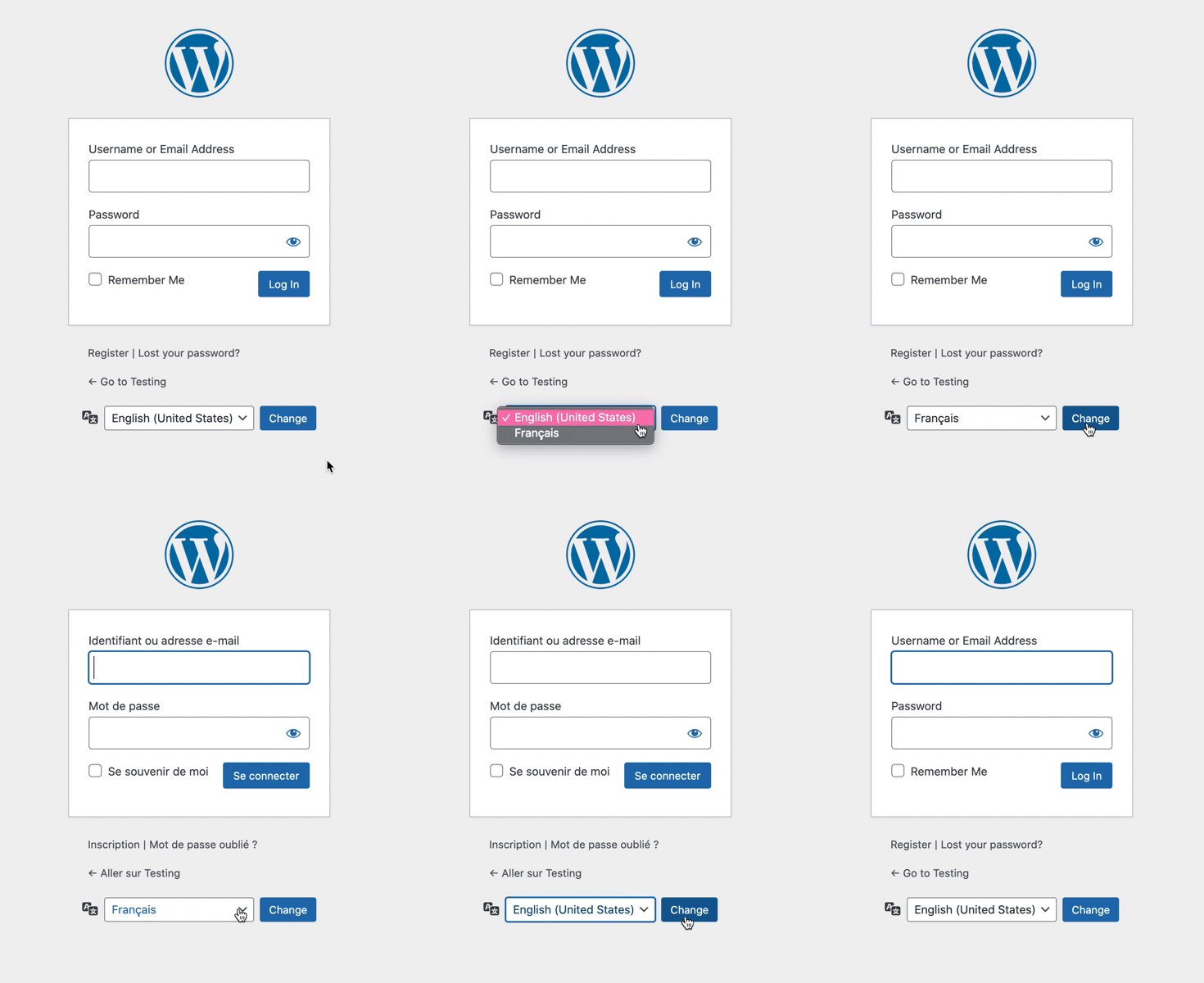
🎉 Step 12 — Launch WordPress Installer
Image
Image

Visit:

http://YOUR_IP

Enter:

  • Database: wordpress
  • User: wpuser
  • Password: your DB password
  • Host: localhost

Click Run Installation.

Congratulations — your cloud server is now hosting WordPress.


❗ Common Errors (And Instant Fixes)

✅ 403 Forbidden

Cause: Wrong permissions

Fix:

sudo chown -R www-data:www-data /var/www/html
sudo chmod -R 755 /var/www/html

✅ 502 Bad Gateway

Cause: PHP socket mismatch

Check:

ls /run/php/

Match it in nginx config.


✅ Database Connection Error

Test manually:

mysql -u wpuser -p -h localhost wordpress

If login works → WordPress will work.

Professional debugging rule.


🔐 MUST-DO Security Steps After Install

Install Firewall

sudo ufw allow OpenSSH
sudo ufw allow 'Nginx Full'
sudo ufw enable

Install Fail2Ban

Blocks brute-force attackers.

sudo apt install fail2ban -y

Disable Root SSH

Edit:

sudo nano /etc/ssh/sshd_config

Set:

PermitRootLogin no

Restart SSH.

Massive security upgrade.


🔒 Install FREE SSL (Highly Recommended)

sudo apt install certbot python3-certbot-nginx -y
sudo certbot --nginx

Choose redirect.

Now your site runs on HTTPS.

Google prefers this.


💡 How Much Traffic Can a t3.micro Handle?

With caching:

👉 10k–20k monthly visitors easily.

Without optimization:

👉 ~3k–5k.

For WooCommerce, consider upgrading later.


🧠 Pro Tips Most Tutorials Don’t Tell You

⭐ Always test DB from CLI

Removes guessing.

⭐ Add swap

Prevents crashes.

⭐ Expand disk early

Scaling later is harder.

⭐ Use non-root DB users

Better security.


🚀 Final Thoughts

By launching WordPress on EC2, you didn’t just install a CMS.

You learned:

✅ Cloud infrastructure
✅ Linux basics
✅ Web server configuration
✅ Database security
✅ Debugging
✅ DevOps fundamentals

These skills separate casual website owners from serious builders.

And once you understand this stack…

You can deploy almost anything.

💡 Don’t Hesitate to Use AI When You Get Stuck

While setting up a cloud server, it is completely normal to encounter unexpected errors — from permission issues and database connection failures to web server misconfigurations. Instead of spending hours searching through scattered forum posts, consider using an AI assistant such as ChatGPT to troubleshoot problems in real time. By simply pasting error messages or describing the issue, you can receive step-by-step guidance tailored to your situation. This approach dramatically shortens the learning curve, reduces frustration, and helps you understand why something broke — not just how to fix it. Think of AI as your on-demand technical companion: whether you are a beginner launching your first server or an experienced builder diagnosing a complex bug, leveraging AI can turn roadblocks into powerful learning moments and keep your project moving forward with confidence.

Happy building 🚀


DigitalOcean Starter vs Contabo Starter for WordPress Hosting (Real Cost Per Website + Small/Medium/Large Estimates)

Rajeev Bagra · January 24, 2026 · Leave a Comment


Launching WordPress on a VPS is one of the smartest ways to get better performance, more control, and lower long-term cost—especially if you want to host multiple websites.

Two beginner-friendly choices people often compare are:

  • DigitalOcean Starter VPS
  • Contabo Starter VPS

Both can host WordPress successfully, but they serve different goals.

In this guide, you’ll get:

✅ A WordPress-focused comparison
✅ Realistic cost-per-website estimates
✅ What makes a website small, medium, or large in server load
✅ Clear recommendations depending on your use-case


Quick Verdict (If You Want the Answer Fast)

✅ Choose DigitalOcean Starter if…

  • You want to run one serious WordPress site
  • You want stable performance
  • You want easy upgrades when traffic grows

👉 DigitalOcean:
https://www.digitalocean.com/


✅ Choose Contabo Starter if…

  • You want to launch many WordPress sites cheaply
  • You want the lowest cost per website
  • You can manage optimization and performance tuning

👉 Contabo (Affiliate link):
https://www.jdoqocy.com/7a81cy63y5LNMNSQMOPVLNRSSRMNP


1) DigitalOcean Starter Plan (WordPress Hosting View)

A typical DigitalOcean entry plan (used for WordPress) is a small VPS such as:

✅ DigitalOcean Starter VPS

  • 1 vCPU
  • 1 GB RAM
  • 25 GB SSD
  • ~1 TB bandwidth
  • Price often around $6/month (varies by region/time)

Why people like DigitalOcean for WordPress

DigitalOcean is a favorite for developers because it offers:

✅ Predictable performance
✅ Strong uptime reputation
✅ Smooth scaling path (upgrade when needed)
✅ Great documentation and ecosystem

But here’s the limitation…

⚠️ 1 GB RAM is small for WordPress once you add:

  • caching plugins
  • security plugins
  • backups
  • multiple sites

So DigitalOcean Starter works best when you want quality over quantity.

👉 DigitalOcean official site:
https://www.digitalocean.com/


2) Contabo Starter Plan (WordPress Hosting View)

Contabo Starter VPS plans usually give much larger specs for the price.

✅ Contabo Starter VPS (typical range)

  • 2–4 vCPU
  • 4–8 GB RAM
  • 100 GB SSD (or more)
  • Price often around $6–$12/month, depending on plan

Why Contabo looks like insane value

Because for WordPress hosting, RAM matters a lot, and Contabo gives more RAM-per-dollar than many providers.

That makes it excellent for:

✅ Hosting many WordPress sites
✅ Multiple client websites
✅ SEO niche sites
✅ Testing sites + staging sites
✅ Multi-site VPS setup

👉 Contabo (Affiliate link):
https://www.jdoqocy.com/7a81cy63y5LNMNSQMOPVLNRSSRMNP


3) What Makes a WordPress Site “Small”, “Medium”, or “Large”?

WordPress site size is NOT decided by the number of pages.

A 10-page website can still be “large” if it’s heavily dynamic (like WooCommerce).
And a 500-page blog can still be “small” if everything is cached.

Here are the real factors that increase resource usage:


A) Traffic (Visitors per Month)

More visitors = more load.

Even a simple site with low traffic is easy to host, but high traffic means:

  • more concurrent users
  • more page generation
  • more bandwidth use

B) Page Weight (Images + Scripts)

Heavy pages often include:

  • large uncompressed images
  • videos and sliders
  • many scripts (ads, tracking, chat widgets)

These increase:
✅ load time
✅ bandwidth consumption
✅ CPU work for optimization plugins


C) Plugins (One of the Biggest Factors)

Plugins can increase:

  • PHP execution time
  • database queries
  • memory usage

Resource-heavy plugin categories:

  • WooCommerce
  • LMS + membership plugins
  • booking plugins
  • multi-vendor plugins
  • security scanners

D) Database Growth

WordPress databases grow fast due to:

  • revisions
  • product data
  • orders
  • users
  • logs
  • analytics and tracking

Bigger database = slower queries if not optimized.


E) Dynamic Features

Pages that don’t cache easily are “expensive”, like:

  • cart
  • checkout
  • login-based dashboards
  • personalized pages

4) Practical WordPress Size Categories (Simple & Realistic)

✅ Small WordPress Website

Examples:

  • portfolio
  • brochure business site
  • basic blog

Typical profile:

  • 0–5,000 visits/month
  • mostly static and cacheable pages

✅ Medium WordPress Website

Examples:

  • SEO blog with consistent growth
  • affiliate niche site
  • small WooCommerce store

Typical profile:

  • 5,000–50,000 visits/month
  • more plugins + heavier pages
  • moderate database activity

✅ Large WordPress Website

Examples:

  • WooCommerce store with daily orders
  • LMS with logged-in users
  • high traffic blog with ads + analytics

Typical profile:

  • 50,000–500,000+ visits/month
  • heavy PHP + DB usage
  • high concurrency

5) How Many WordPress Sites Can You Host on Each?

This section is where you see the real difference.


✅ DigitalOcean Starter (1GB RAM)

Realistic capacity:

  • Small sites: ✅ 1–3 sites
  • Medium sites: ✅ 1 site
  • Large sites: ❌ not recommended on starter

Why? Because WordPress needs RAM for:

  • PHP workers
  • MySQL/MariaDB caching
  • background tasks (cron jobs)
  • admin panel performance

✅ Contabo Starter (4–8GB RAM range)

Realistic capacity:

  • Small sites: ✅ 10–25 sites
  • Medium sites: ✅ 3–8 sites
  • Large sites: ✅ 1–2 sites

This is why Contabo is extremely popular for multi-site WordPress hosting.

👉 Contabo (Affiliate link):
https://www.jdoqocy.com/7a81cy63y5LNMNSQMOPVLNRSSRMNP


6) Cost Per Website Estimates (Small / Medium / Large)

Let’s estimate typical monthly server cost:

  • DigitalOcean starter VPS = ~$6/month
  • Contabo starter VPS = ~$7/month (starter estimate; your plan may differ)

Now divide the VPS cost by the number of sites you can realistically host.


✅ Small WordPress Sites Cost Per Website

DigitalOcean (1–3 small sites)

  • 1 site → $6/site
  • 2 sites → $3/site
  • 3 sites → $2/site

Contabo (10–25 small sites)

  • 10 sites → $0.70/site
  • 20 sites → $0.35/site
  • 25 sites → $0.28/site

🏆 Winner for multiple small sites: Contabo


✅ Medium WordPress Sites Cost Per Website

DigitalOcean

  • 1 medium site → $6/site

Contabo (3–8 medium sites)

  • 3 sites → $2.33/site
  • 5 sites → $1.40/site
  • 8 sites → $0.88/site

🏆 Winner: Contabo


✅ Large WordPress Sites Cost Per Website

DigitalOcean starter

❌ Large sites usually need bigger RAM/CPU. Not ideal on starter.

Contabo (1–2 large sites)

  • 1 large site → $7/site
  • 2 large sites → $3.50/site

🏆 Winner for starter-level large site hosting: Contabo
(assuming strong caching + optimization)


7) Hidden Costs People Forget (Important)

Your VPS may be cheap per website, but WordPress still needs:

✅ Domain cost (per site)
✅ Email (optional but common)
✅ Backup storage cost
✅ CDN (Cloudflare is often enough)
✅ Security + monitoring tools
✅ Your time managing the VPS

⚠️ Biggest risk of hosting many sites on one VPS:
If that server goes down, all sites go offline together.


8) Final Recommendation (Honest Verdict)

✅ Best for ONE serious WordPress website

DigitalOcean Starter is better if you value:

  • stability
  • consistent performance
  • smoother scaling

👉 DigitalOcean:
https://www.digitalocean.com/


✅ Best for MANY WordPress websites (lowest cost-per-site)

Contabo Starter is best if you want:

  • max value
  • many websites per VPS
  • cheap hosting per WordPress install

👉 Contabo (Affiliate link):
https://www.jdoqocy.com/7a81cy63y5LNMNSQMOPVLNRSSRMNP


Conclusion

If you’re building a network of WordPress sites or hosting for clients, Contabo Starter wins on cost-per-website.

If you’re focused on one primary website and want a more premium VPS experience, DigitalOcean Starter is a safer launch choice.


How Many WordPress Websites Can a Contabo Cloud VPS 10 Host? (With a Realistic Estimate)

Rajeev Bagra · January 22, 2026 · Leave a Comment

Many people think a VPS (Virtual Private Server) can host only one website, similar to shared hosting plans. But that’s not true.

✅ A VPS can host multiple WordPress websites
✅ Even a WordPress site with 2000+ pages/posts can run smoothly
✅ The real limit depends mainly on traffic + site heaviness, not only page count

This blogpost explains everything using the Contabo Cloud VPS 10 starter plan, and also provides a realistic estimate of how many WordPress websites it can handle.


Contabo Cloud VPS 10 Starter Plan (Specs + Cost)

The starter plan being discussed is:

✅ Contabo Cloud VPS 10

  • CPU: 4 vCPU Cores
  • RAM: 8 GB RAM
  • Storage: 75 GB NVMe (or 150 GB SSD)
  • Port: 200 Mbit/s Port
  • Data Transfer: Unlimited Traffic
  • Price: $7.65/month
  • Price incl. 18% VAT: $9.03/month (approx ₹750/month, depending on USD-INR rate)

👉 This plan can be started here (and upgraded anytime later if needed):
https://www.jdoqocy.com/sh97ox52x4KMLMQOMSOPKMSLPUMRS


Can Only One Website Be Added on a VPS?

No ✅
A VPS can host:

✅ 1 website
✅ 5 websites
✅ 20+ websites
✅ even more (depending on optimization)

Unlike shared hosting, a VPS doesn’t restrict domain count. The real limits are based on:

  • CPU usage
  • RAM usage
  • storage usage
  • daily visitors and traffic spikes
  • WordPress themes + plugins used

What Does “Small” and “Medium” WordPress Website Mean?

When WordPress hosting is discussed, people often say “small website” or “medium website”. This usually refers to server load, not only how many pages exist.

✅ Small WordPress Website (Low Load)

A small website usually has:

  • lightweight theme
  • 10–20 plugins
  • low traffic (0–300 visitors/day)
  • blog/business/portfolio style pages

✅ Medium WordPress Website (Moderate Load)

A medium website may have:

  • heavier design or more features
  • 20–40 plugins
  • Elementor/page builder usage
  • moderate traffic (300–3000 visitors/day)

Does 2000 Pages Make a WordPress Website Heavy?

Not necessarily.

✅ Scenario:

  • 2000 pages/posts
  • Traffic per day: less than 20 visitors

This is still considered a light-load WordPress website.

That’s because servers work harder when:

✅ many visitors load pages at the same time
✅ sites are dynamic and heavy (WooCommerce, membership, etc.)
✅ plugins and themes increase processing
✅ caching is missing

So page count alone does not decide server load.


What Can Still Slow Down a Low-Traffic WordPress Website?

Even if traffic is low, a WordPress site can become slow if it has:

⚠️ too many plugins (especially bloated plugins)
⚠️ heavy themes or page builders used everywhere
⚠️ large image files (5MB–10MB images)
⚠️ no caching plugin
⚠️ unoptimized database
⚠️ poor VPS configuration (PHP/MySQL not tuned)

The best approach is always:

✅ use caching
✅ keep plugins limited
✅ optimize images
✅ choose a lightweight theme


Realistic Estimate: How Many WordPress Websites Can VPS 10 Host?

Now the most important answer.

On Contabo Cloud VPS 10 (4 vCPU / 8GB RAM), the number of websites depends on how heavy each WordPress site is.


✅ Best Case (Light Sites + Low Traffic + Caching)

➡️ 30 to 60 WordPress websites

This is possible when:

  • lightweight themes are used
  • 10–15 plugins per site
  • caching is enabled
  • low traffic per website (example: <50 visitors/day per site)

✅ Normal & Safe Estimate (Most Realistic for Most Users)

➡️ 15 to 30 WordPress websites

This is the best expectation if:

  • some sites have 20+ plugins
  • some pages are heavier
  • small traffic spikes happen
  • multiple sites run together smoothly

✅ A safe number to assume is: around 20 websites comfortably


✅ Heavy WordPress Websites (Elementor + WooCommerce + Many Plugins)

➡️ 5 to 10 WordPress websites

This happens when sites are heavy because of:

  • Elementor used heavily
  • WooCommerce store features
  • too many scripts + tracking tools
  • high dynamic load

✅ Exact Estimate for the “2000 Pages but <20 Visitors/day” Case

➡️ 25 to 50 WordPress websites (realistic)

Because:

  • page count mainly affects storage + backups
  • very low traffic keeps CPU usage low
  • WordPress performs well with basic optimization + caching

So yes — even with large content websites (2000 pages), VPS 10 can still host dozens of sites if traffic remains low.


Best Starter Plan Conclusion (Simple Answer)

✅ Contabo Cloud VPS 10 can host around 20–30 WordPress websites safely, and up to 50+ if the sites are low-traffic and optimized.

This makes it one of the best budget VPS options to start WordPress hosting.


Want to Upgrade Later?

If traffic grows or heavier websites are added, the plan can easily be upgraded by checking the available options here:

👉 https://www.jdoqocy.com/sh97ox52x4KMLMQOMSOPKMSLPUMRS

WordPress vs Django: The Complete Guide to Launching, Scaling, and Hosting Your Website (With Checklist + Real Examples)

Rajeev Bagra · January 21, 2026 · Leave a Comment

Launching a website sounds simple—until you actually do it.

You choose a domain, pick a hosting provider, set up the site, and then you hit the real question:

✅ Should you launch on WordPress?
or
✅ Should you build it using Django?

Both are powerful, widely used, and trusted technologies. But they are built for different goals.

In this complete guide, you’ll learn:

  • The real difference between WordPress vs Django
  • Which one is better for speed, SEO, customization, and security
  • A 10-question decision checklist
  • Real-world examples of “the same website” built in both
  • Signs you may need to upgrade from WordPress to Django
  • The best hosting setup for each (including AWS Lightsail)

Let’s dive in.


1) What WordPress and Django Actually Are

✅ WordPress (CMS)

WordPress is a Content Management System (CMS) designed mainly for:

  • Blogs and content sites
  • Business websites
  • Affiliate marketing sites
  • AdSense websites
  • News portals
  • Portfolio websites

The best thing about WordPress is that it gives you a full website structure instantly—without coding.

You manage content from an admin dashboard.


✅ Django (Python Web Framework)

Django is a Python framework used to build websites and web applications using code.

It’s ideal when you want:

  • Custom web applications (SaaS)
  • Dashboards and portals
  • Membership systems with custom logic
  • Automated workflows
  • APIs for mobile apps + web apps

In short:

✅ WordPress is built to publish content easily
✅ Django is built to build systems and products


2) Launch Speed: Which One Goes Live Faster?

ߚ WordPress = Fastest Launch

A WordPress website can go live in:

✅ 30 minutes to a few hours

Typical process:

  1. Buy domain + hosting
  2. Install WordPress (often 1-click)
  3. Choose a theme
  4. Add plugins
  5. Publish pages and blog posts

If your priority is speed, WordPress wins.


ߧ Django = Slower Launch, More Control

A Django website typically takes:

✅ days to weeks

Because you build everything step-by-step:

  • Models (database structure)
  • Views and URLs
  • Templates/design logic
  • Admin features
  • Deployment setup (Gunicorn + Nginx)

Django is slower initially, but it’s extremely powerful long-term.


3) Ease of Use: Who Can Manage It?

✅ WordPress (Beginner-Friendly)

WordPress is perfect if:

  • you want to edit pages easily
  • you want drag-and-drop tools (Elementor, Gutenberg)
  • you want clients to manage the site without developer help

✅ Django (Developer-Friendly)

Django is best if:

  • you’re comfortable with Python
  • you want full control over features
  • you want custom workflows and dashboards

Django has an admin panel too, but it’s not the same “ready CMS” experience as WordPress unless customized.


4) Customization and Flexibility

✅ WordPress: Plugins + Themes

WordPress customization = install and configure.

Pros:

  • quick results
  • thousands of plugins
  • huge theme market

Cons:

  • too many plugins = slow, conflict-prone, security risk
  • advanced customization becomes messy

✅ Django: Unlimited Custom Development

Django is unlimited because you’re coding it.

You can build:

  • custom roles and permissions
  • custom dashboards
  • custom database systems
  • APIs, automation, and unique business rules

But the trade-off is time and development work.


5) Security Comparison

✅ WordPress Security (Strong but needs maintenance)

WordPress is secure if you follow best practices, but it’s a common target because it’s so popular.

Security issues mostly come from:

  • outdated plugins
  • weak passwords
  • pirated themes/plugins

✅ Django Security (Strong by design)

Django includes protections such as:

  • CSRF protection
  • secure authentication handling
  • security middleware options

Django is generally safer when built and maintained properly, because it avoids plugin chaos.


6) SEO + Blogging: Who Wins?

✅ WordPress = Best for SEO & Blogging

WordPress is the best choice if your growth plan is:

✅ content publishing
✅ affiliate marketing
✅ AdSense monetization
✅ organic traffic from Google

SEO tools like RankMath and Yoast make WordPress extremely easy for beginners.


✅ Django SEO is Possible (But Manual)

Django sites can rank just as well—but you must build:

  • a blogging system
  • meta tags handling
  • structured data
  • sitemaps and URL structures

It’s doable, but not plug-and-play.


✅ WordPress vs Django Decision Checklist (10 Questions)

Use these 10 questions to pick your best option.

  1. Do I need the website live quickly (today/this week)?
    ✅ WordPress
  2. Is blogging + SEO my primary goal?
    ✅ WordPress
  3. Do I want non-technical people to update content easily?
    ✅ WordPress
  4. Do I need advanced user roles and permissions?
    ✅ Django
  5. Do I need dashboards and custom reports?
    ✅ Django
  6. Am I building an actual app, not just web pages?
    ✅ Django
  7. Am I relying on too many plugins for basic functions?
    ✅ WordPress (short-term) but consider Django long-term
  8. Do I want a clean, scalable backend structure?
    ✅ Django
  9. Do I have coding skills (or a developer)?
    ✅ Django becomes easier
  10. Do I want to build a long-term platform or SaaS?
    ✅ Django

✅ Real Examples: “Same Website” Built in WordPress vs Django

Let’s compare real-world scenarios.


Example 1: Local Business Website

✅ WordPress Version

Includes:

  • homepage
  • services pages
  • contact form
  • blog
  • map

✅ Launch time: 1 day
✅ Best choice: WordPress

✅ Django Version

Same website needs:

  • custom page templates
  • custom forms
  • admin configuration

✅ Launch time: 1–2 weeks
✅ Best only if you want custom workflows


Example 2: Affiliate Website / AdSense Website

✅ WordPress Version

You can launch with:

  • SEO plugin
  • affiliate link tools
  • fast publishing system

✅ Best choice: WordPress

✅ Django Version

You must build:

  • blog editor system
  • SEO + sitemaps
  • link management tools

✅ Best choice only if you want to build a product out of it


Example 3: Membership Portal / Student Dashboard

✅ WordPress Version (Plugin-Based)

Can be done using:

  • membership plugins
  • LMS plugins
  • payment plugins

✅ good for quick launch
❌ plugins can become heavy long-term

✅ Django Version (Custom Platform)

Django can build:

  • custom login dashboard
  • course system
  • progress tracking
  • role-based access

✅ Best choice: Django


Example 4: Job Board Website

✅ WordPress Version

  • job board plugin
  • paid listing setup
  • fast launch

✅ Best for speed

✅ Django Version

  • custom job model
  • employer workflows
  • moderation system
  • powerful search filters

✅ Best for long-term platform building


✅ When WordPress Becomes Limiting: Signs You Should Switch to Django

WordPress is amazing—but not always forever.

Here are the clearest signs you’re outgrowing WordPress.


1) You’re Using Too Many Plugins

When you need 20–40 plugins just to keep the site running smoothly, problems start:

  • plugin conflicts
  • slow performance
  • security vulnerabilities
  • expensive renewals

✅ Django replaces multiple plugins with clean custom code.


2) You Need Custom User Roles Beyond Basic WordPress

If your platform needs roles like:

  • student / teacher / admin
  • buyer / seller / moderator
  • verified / unverified members

WordPress becomes complicated quickly.

✅ Django handles roles and permissions naturally.


3) You Need Workflows (Submit → Review → Approve)

If your website needs business logic like:

  • approvals
  • verification
  • step-based processes

WordPress feels “forced” and plugin-dependent.

✅ Django is built for workflow-based systems.


4) You Want Proper Dashboards (Not Just WP Admin)

WordPress admin works great for posts and pages.

But if you want:

  • analytics dashboards
  • revenue tracking
  • reports and graphs
  • activity logs

✅ Django is the better foundation.


5) You Want APIs + App Integrations

If your future includes:

  • mobile apps
  • custom integrations
  • API endpoints

✅ Django is the correct choice.


✅ Best Hosting Setup for WordPress vs Django (Including AWS Lightsail)

Hosting is where “good websites” become “serious websites.”

Let’s break down the best setups for each.


✅ Best Hosting Setup for WordPress

Option 1: AWS Lightsail WordPress (Bitnami)

Perfect for:
✅ affiliate sites
✅ AdSense blogs
✅ niche content websites
✅ business websites

Why it works:

  • 1-click WordPress install
  • low cost
  • strong control
  • scalable upgrades

Recommended plans:

  • $5/month for starter
  • $10–$20/month for higher traffic

Option 2: Managed WordPress Hosting (WP Engine)

Perfect for:
✅ business websites
✅ agencies
✅ premium clients

Best for people who want:

  • performance optimization
  • less server stress
  • strong support

✅ Best Hosting Setup for Django

Best Setup: AWS Lightsail Ubuntu + Nginx + Gunicorn

Django hosting is more technical but very professional.

Typical production flow:

User → Nginx → Gunicorn → Django App → Database

Best for:
✅ SaaS products
✅ dashboards and portals
✅ membership platforms
✅ APIs

Recommended plans:

  • start with $5–$10/month
  • scale as users increase

✅ The Best Hybrid Strategy (Most Practical)

This is the smartest approach many founders use:

✅ WordPress = Marketing + Blog + SEO Engine
✅ Django = Product/App + Dashboard + Custom Platform

Example:

  • WordPress pages rank on Google
  • Django powers login users and paid features

That combination gives you:
✅ fast traffic growth
✅ strong custom product foundation


Final Conclusion

If your goal is:

✅ Fast launch + content + SEO + monetization → WordPress
✅ Custom platform + long-term scalability + advanced features → Django

WordPress is the best website launcher.
Django is the best platform builder.


A Smart Strategy to Launch a WordPress Blogging Website and Monetize It with AdSense + Affiliate Marketing

Rajeev Bagra · January 20, 2026 · Leave a Comment

Starting a WordPress website in the content/blogging niche is one of the most practical online business models today. With the right process, anyone can build a site from scratch, publish valuable content, and gradually monetize it with affiliate marketing and Google AdSense.

This guide explains a proven strategy that many bloggers follow to launch their WordPress site professionally and move toward monetization step by step.


1. Start With the Right Domain Name (Preferably a .com)

The first step is choosing a strong domain name, and most experienced website builders prefer a .com domain whenever possible because:

  • It is globally trusted
  • Easier to remember
  • Often increases brand credibility
  • More valuable if the site is sold later

Domains are usually purchased from registrars like:

✅ Namecheap
✅ Hostinger
✅ IONOS

The focus is on selecting a name that is short, clear, brandable, and relevant to the niche.


2. Choose Reliable Hosting for WordPress

After buying the domain, the next step is selecting a stable hosting provider.

Most beginners start with basic hosting, but for a serious monetized blogging site, reliable hosting is important because it affects:

  • Website speed
  • Uptime
  • User experience
  • Search engine ranking (SEO)

Some popular choices include:

✅ AWS Lightsail (best for control + scalability)
✅ WP Engine (premium managed WordPress hosting)

This stage ensures the website runs fast, remains secure, and stays online consistently.


3. Install WordPress and Set Up the Basic Website Structure

Once hosting is ready, WordPress can be installed and configured.

Before adding blog posts, successful bloggers typically set up the essentials:

  • A clean theme (fast and responsive)
  • Basic branding (logo + colors)
  • Main menu and categories
  • SEO plugin setup
  • Simple caching + performance settings

This gives the site a professional foundation from day one.


4. Start Publishing Blog Posts Consistently (Quality Over Quantity)

Instead of trying to publish 50 articles immediately, this strategy focuses on growing steadily.

Most website builders begin by writing and posting around:

✅ 5 to 10 high-quality blog posts

A common target is at least 7 strong blog posts before applying for AdSense.

These initial articles should be:

  • Helpful and informative
  • Written for real users
  • Easy to read
  • Focused on one clear topic
  • Optimized with headings and keywords naturally

This makes the site look serious and useful—exactly what AdSense reviewers and visitors want.


5. Add Affiliate Links in Strategic “Static” Locations

Affiliate marketing works best when the links are placed intelligently instead of randomly.

A smart method is adding affiliate links in permanent or “static” areas like:

  • ✅ Right sidebar
  • ✅ Footer
  • ✅ End of blog posts
  • ✅ Inside relevant content

This ensures affiliate links remain visible without hurting user experience.

Over time, these links can generate passive income even if traffic is small initially.


6. Prepare the Website for Google AdSense Approval

After the first set of posts are live, the next step is applying for Google AdSense.

But before applying, the site should include important pages that AdSense expects:

✅ About Page
✅ Contact Page
✅ Privacy Policy
✅ Terms & Conditions (recommended)

This builds trust and shows that the website follows professional standards.

Also, the website should follow basic AdSense rules like:

  • No copied content
  • No thin/empty pages
  • No misleading navigation
  • No prohibited topics

7. Apply for AdSense — and Don’t Quit If Rejected

Many beginners think AdSense rejection means the site has failed.

But experienced bloggers know something important:

✅ Rejection is normal. Approval comes with consistency.

Even if AdSense rejects the site initially, the best approach is:

  • Improve content quality
  • Add a few more posts
  • Fix design and navigation
  • Remove unnecessary elements
  • Make the site look cleaner and more complete

Then reapply again.

In most cases, after tweaking and reapplying a few times, the website eventually gets approved.


8. Monetize Properly After Approval

Once AdSense is approved, the website enters the monetization phase.

Now the strategy becomes:

  • Keep publishing new blog posts weekly
  • Monitor which pages get traffic
  • Place ads properly without ruining user experience
  • Combine AdSense + affiliate offers
  • Improve SEO gradually

This creates two strong income streams:

✅ AdSense income from page views
✅ Affiliate income from clicks and conversions

Over time, the website becomes a digital asset that can generate consistent passive income.


Bonus Tips to Improve Results Faster

Here are a few extra smart ideas that can improve the strategy:

✅ Keep Site Design Simple and Fast

AdSense favors clean sites that load quickly.

✅ Add Internal Linking

Every new blog post should link to older related posts. This improves SEO and user engagement.

✅ Build Trust With Original Content

Unique content increases approval chances and long-term ranking.

✅ Use a Content Plan

Even 2 posts per week is enough if done consistently.


Final Thoughts

This strategy proves that launching a WordPress blogging website does not require heavy investment, but it does require:

✅ consistency
✅ smart content publishing
✅ proper affiliate placement
✅ patience during the AdSense approval process

By following the step-by-step approach—starting with a good domain, reliable hosting, publishing content, adding affiliate links, and applying for AdSense at the right time—anyone can build a profitable content website in the long run.

  • « Go to Previous Page
  • Page 1
  • Interim pages omitted …
  • Page 5
  • Page 6
  • Page 7
  • Page 8
  • Page 9
  • Interim pages omitted …
  • Page 14
  • Go to Next Page »

Primary Sidebar

Recent Posts

  • The Future of the Internet: Every Person, Every Business, One Digital Identity
  • Affiliate Marketing in the Age of AI: How the Industry Works and Why Affiliate Networks Still Matter
  • Why Direct Traffic and Organic Search Should Be Analyzed Separately
  • Does 0 Keywords in Google Search Console Mean 0 Google Impressions?
  • Public Analytics Reports for WordPress: A Practical Way to Share Website Performance

Archives

  • October 2026
  • September 2026
  • August 2026
  • July 2026
  • June 2026
  • May 2026
  • April 2026
  • March 2026
  • February 2026
  • January 2026
  • December 2025
  • November 2025
  • October 2025
  • September 2025
  • August 2025

Categories

  • Blog
  • Offers

Tag

adsense affiliate marketing ai AI website builder AWS EC2 AWS Lightsail bitnami cloud computing Codespace CSS digitalassets Django domain domainsale email marketing forms freelancing gaming Genesis Framework Git Github Google Analytics Google Search hardware HTML IONOS mediavine Moosend Omnisend oop PayPal premium domain publisher ads Python Sendpulse SEO social media software SQL StudioPress Twilio webdev web hosting webhosting WordPress

Explore expert guides on WordPress, web hosting, website development, and online business growth. Visit Our Blog

Webnzee

This website may use AI tools to assist in content creation. All articles are reviewed, edited, and fact-checked by our team before publishing. We may receive compensation for featuring sponsored products and services or when you click on links on this website. This compensation may influence the placement, presentation, and ranking of products. However, we do not cover all companies or every available product.

  • Home
  • Blog
  • Trending
  • Offers
  • Terms
  • Subscribe
  • Support
  • Contact
Scroll Up